


Compatibility Warning
PlanetsLib
If you're experiencing issues with IPL and use PlanetsLib version 1.15.0 or earlier, please read this section carefully.
The Issue
Several planet mods use PlanetsLib. While not directly incompatible with IPL, versions earlier than 1.15.1 can cause IPL to break under specific circumstances.
When Does This Happen?
IPL will break ONLY if ALL of the following conditions occur together:
- You're using PlanetsLib version 1.15.0 or earlier
- Two platforms using IPL are stationed in orbit of a planet added by a mod that uses PlanetsLib
- That planet requires a specific technology to unlock cargo pod drops
- You have not researched that technology yet
- IPL attempted to send a cargo pod between these platforms, and PlanetsLib cancelled it
- You may have seen a message:
[Whisper] Unsafe cargo pod from... aborted
What Happens?
When PlanetsLib cancels a cargo pod, IPL's internal tracking becomes desynchronized. Your requester platforms in orbit of that planet will stop functioning correctly because they still "think" items are in transit.
How to Fix It
If this happened to you:
-
Immediate fix: Run this command in the console:
/ipl-reset-podbuffer
This clears IPL's tracking data and restores normal operation.
This means that any pod that is currently traveling between two platforms will be "lost" by IPL's system and their ressources won't be accounted for. -
Permanent solution: Update PlanetsLib to version 1.15.1 or later.
Burning Cargo Pods
The mod "Burning Cargo Pods" has the same issue as older PlanetsLib versions and is NOT compatible with IPL.
Important Information
- Burning Cargo Pods uses the same pod cancellation system that causes IPL to desynchronize
- This mod is deprecated and will not receive any fixes
- Burning Cargo Pods was never compatible with IPL and may have corrupted your save data
- As of this version, Burning Cargo Pods is now marked as officially incompatible with IPL
If You Used Both Mods
If you have been using Burning Cargo Pods alongside IPL and are experiencing issues:
-
Run the fix command:
/ipl-reset-podbuffer -
Uninstall Burning Cargo Pods immediately to prevent further save corruption
Warning: Do not reinstall Burning Cargo Pods if you plan to use IPL. These mods cannot work together.
Important Notes
- Without updating PlanetsLib, IPL will break again each time it tries to send pods between platforms orbiting a locked planet
- The fix command only addresses the symptom - the issue will recur until you update PlanetsLib
- If you update PlanetsLib to 1.15.1+, this issue will not occur
Debug
/ipl-reset-podbuffer
- IPL normally keeps track of travelling pods between platforms and counts the ressource they contain as "already in the hub" for the purpose of calculating how many ressources are currently at the requester.
- Certain interactions with other mods MAY break this system (any mod that destroys a cargo pod that IPL created before it delivers its cargo).
- When you reset this tracking buffer, if pods are currently traveling, IPL will not count their ressources anymore.
- This may result in IPL sending more ressources than intended until the pods effectively arrive (a few seconds).
- This is normal, there is nothing to worry about, but I write it so you don't panic if you see that one of your requester got a double delivery in the seconds that follows you typing the command.
- IPL will return to its normal behavior for all deliveries triggered after sending the command (all pods created after the command was entered).
General guidelines
Unlock the corresponding tech. The research will be available after the logistic system and the space thrusters.
There are 3 antennas :
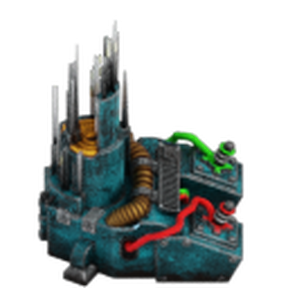
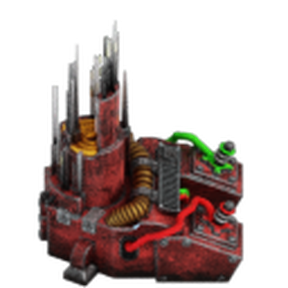
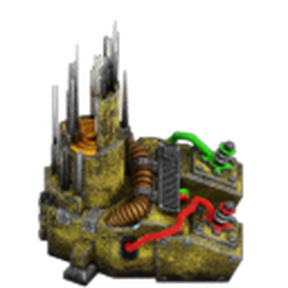
- Requester (red)
- Provider (blue)
- Request Threshold (yellow)
- You can only place antennas on a space platform.
- You cannot place more than ONE of each antenna type on a single space platform.
- You do NOT need to wire the antennas to the hub for them to function.
- Antennas will ONLY work if they are wired to a circuit network.
Settings
The mod has the following settings, which you shouldn't change if you don't know what you are doing :
Map runtime:
- Platforms evaluated per tick : the amount of platforms IPL will process per tick.
- Requests evaluated per tick : the amount of individual item request IPL will process per tick.
- Enable the gui on antennas : whether or not you should see the "display" functions of the antennas when you click on it. Disabled by default.
Startup:
- Enable channel encoding : whether or not the "advanced" channels mode is enabled. Channel encoding chances radically how channels are handled. Refer to the dedicated section below. Disabled by default.
Provider Antenna (red):
The Provider Antenna identifies which items are available for transport from a specific platform.
- Place one Provider Antenna on the platform from which you intend to export items.
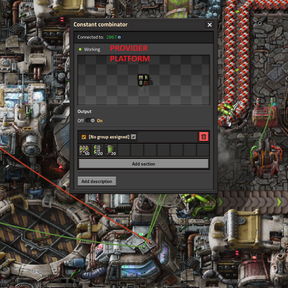
- Wire the antenna to a signal source (e.g., a Constant Combinator) via the Circuit Network.
- Set the desired item signals. The value represents the minimum stock required before the antenna activates and makes those items available to the network. (I.e. Iron plates 200 will trigger when you have over 200 iron plates and be able to send them to other platforms.)
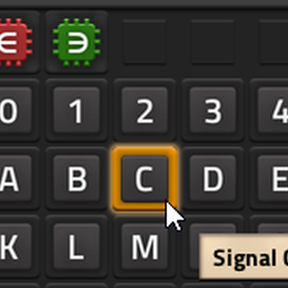
- Optionally, to use a specific communication channel, set a letter Signal of C to the desired number to set the channel. If no channel is specified, the antenna defaults to Channel 0.
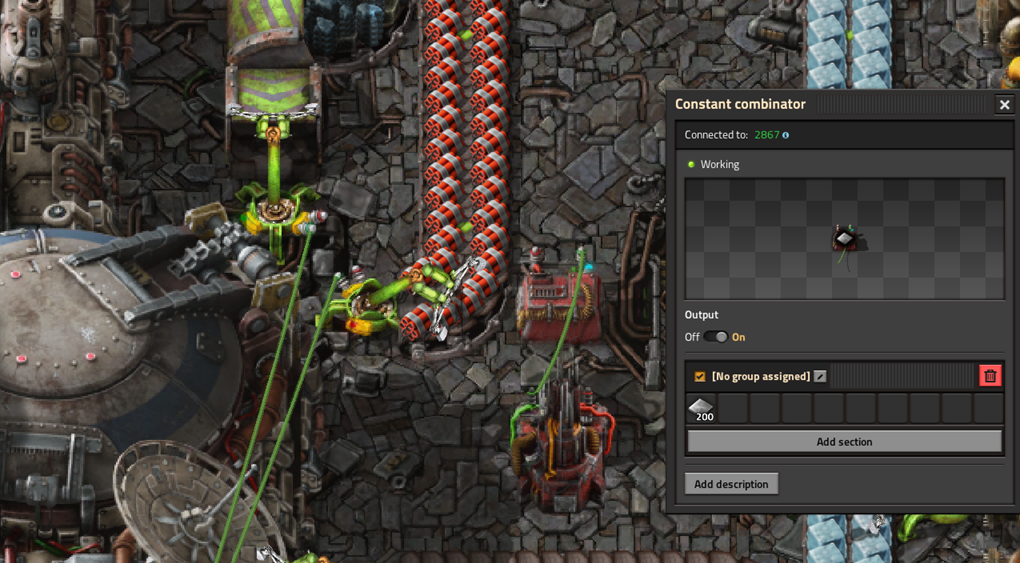
Requester Antenna (blue):
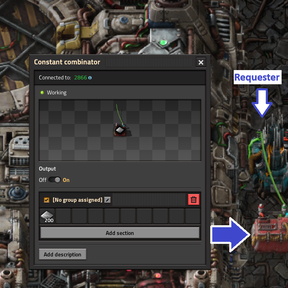
The Requester Antenna identifies which items a platform needs to receive.
- Place one Requester Antenna on the platform where you want to receive items.
- Wire the antenna to a signal source (e.g., a Constant Combinator) via the Circuit Network.
- Set the item signals to your target amount. The antenna will request items until the platform's inventory matches this value. I.e. Iron plates 200 will receive 200 iron plates
- Optionally, set a Signal C to define the channel. Defaults to Channel 0 if unset.
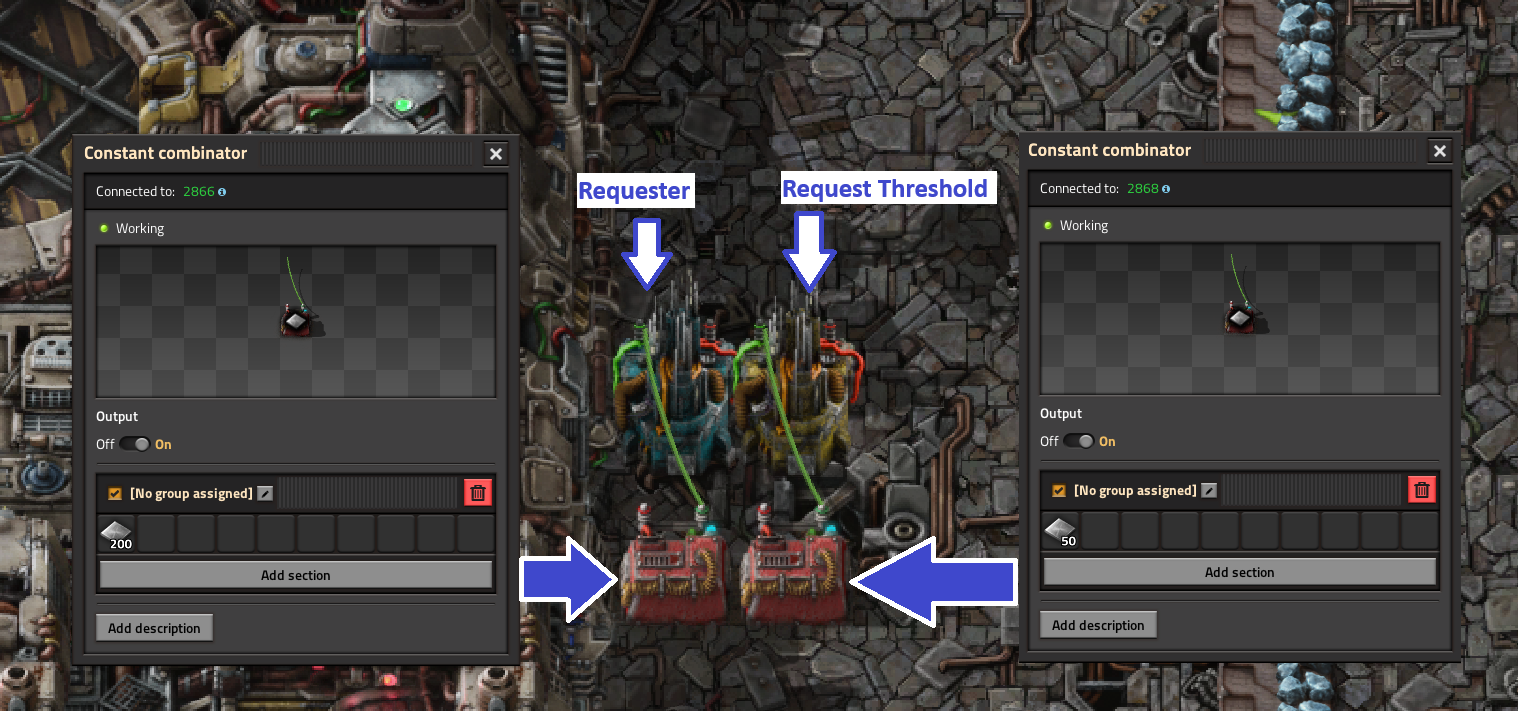
Request Threshold Antenna (yellow):
This antenna aids the requester antenna by telling it how many items should the platform have before it starts asking for a resupply.
It prevents frequent, small deliveries by setting a "minimum order" size.
YOU DO NOT NEED TO WIRE THE REQUESTER THRESHOLD AND REQUESTER ANTENNAS TOGETHER.
- Place one request threshold Antenna on a platform where you have a requester Antenna.
- Wire the antenna to a signal source (e.g., a Constant Combinator) via the Circuit Network.
- Set the desired item signals. The value represents the minimum difference between the current amount the hub has in storage and the value set in the requester Antenna before a request is triggered. (I.e. Your requester Antenna receives Iron plates 200, your Request Threshold Antenna receives Iron plates 50, and your hub currently has 180 Iron plates : the request will NOT trigger. The request will trigger whenever the current amount of iron plates inside the hub reaches 200 - 50 = 150).
- Using the request threshold Antenna allows you to guarantee fewer trips for your pods, with larger payloads, therefore increasing maximum throughput by allowing your hatches to be busy less often.
- Optionally, set a Signal C to match the Requester's channel. Defaults to Channel 0.
Channel
By know, if you read the rest, you should know what this is about.
You can use different channels on a same Antenna. This allows you to use circuits logic to swap multiple configurations under certain conditions.
A channel is represented by the signal C. If an Antenna doesn't receive the signal C, it defaults to the channel 0, which means it will communicate with all other Antennas that either do not receive the signal C, or receive the signal C = 0.
The quality of the signal C must be "normal" (the default one). Any other quality for this signal won't be recognized or handled for performance reasons.
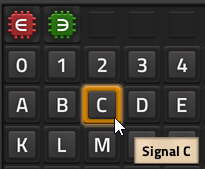
Exemple usage :
For example, say that you have 3 platforms and you want to move iron plates from one ship to another via a stationary platform.
Platform 1 collects iron and provides on signal C1
Platform 2 holds iron, it requests on signal C1 and provides on C2
Platform 3 requests iron on channel C2
Channel encoding
This is advanced, and might remind you of LTN. Channel encoding is disabled by default. You can enable it in the mod options.
Please, read carefully. This changes a lot of things.
Channel encoding changes how channels are interpreted.
The first, biggest change is that "channel 0" (when you don't set a channel) now means "EVERY CHANNEL".
An antenna without a channel will be able to interact with all other antennas regardless of their own channel.
Using channel encoding means that channels matching use bitwise comparison.
You can have 31 different channels this way.
Using this system, you should consider the following table :
On the left, the signal name and its value.
- Signal C = 0 / no signal C -> all channels
- Signal C = 1 (binary: 0001) -> channel 1 only
- Signal C = 2 (binary: 0010) -> channel 2 only
- Signal C = 3 (binary: 0011) -> channels 1 & 2
- Signal C = 4 (binary: 0100) -> channel 3 only
- Signal C = 5 (binary: 0101) -> channels 1 & 3
- Signal C = 6 (binary: 0110) -> channels 2 & 3
- Signal C = 7 (binary: 0111) -> channels 1, 2 & 3
- And so on...
To find out the channel groups, add the power of two value of 2 signals value associated to individual channels.
I.e. :
- Signal C = 7 is comprised of Signal C values 1, 2, and 4 (channels 1, 2 and 3).
- When you add the SIGNAL values : 1 + 2 + 4 you obtain 7.
- You may ask "but, mate, 3 + 4 = 7 too ! And you would be right. But if you look carefully, C3 is NOT a channel, it's a group.
Below is a quick reference for signal up to 15, I'll let you figure out the rest yourself.
Channel Reference Table
| Signal C Value | Binary | Channels Included |
|---|---|---|
| 0 | - | All channels (wildcard) |
| 1 | 0001 | Channel 1 |
| 2 | 0010 | Channel 2 |
| 3 | 0011 | Channels 1, 2 |
| 4 | 0100 | Channel 3 |
| 5 | 0101 | Channels 1, 3 |
| 6 | 0110 | Channels 2, 3 |
| 7 | 0111 | Channels 1, 2, 3 |
| 8 | 1000 | Channel 4 |
| 9 | 1001 | Channels 1, 4 |
| 10 | 1010 | Channels 2, 4 |
| 11 | 1011 | Channels 1, 2, 4 |
| 12 | 1100 | Channels 3, 4 |
| 13 | 1101 | Channels 1, 3, 4 |
| 14 | 1110 | Channels 2, 3, 4 |
| 15 | 1111 | Channels 1, 2, 3, 4 |
Individual channel values:
- Channel 1 = 1
- Channel 2 = 2
- Channel 3 = 4
- Channel 4 = 8
- Channel 5 = 16
- Channel 6 = 32
- ... (each channel doubles the previous value)
To create a channel group: Add the individual channel values together.
Example: To communicate on channels 1, 3, and 4, use Signal C = 1 + 4 + 8 = 13
Credits
Thanks for the following people for helping me piece this together :
Graphics : Galdoc
Testing : Quaitgor
Documentation : Muramas